Most trip “planners” are either a pretty map with sticky notes, a chatbot that forgets your party size, or a spreadsheet that never learned what a metro transfer is. TripPapa is built around one stubborn idea: research, days, routes, and a handoff document should live in the same workspace — so you stop copy-pasting between twelve tabs.
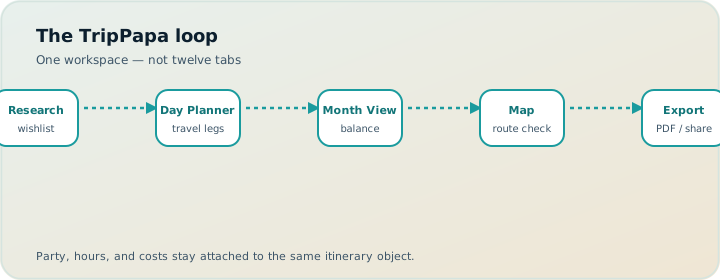
This is a full walkthrough of the real product. No invented swipe screens. No Discovery Yes/No quiz. Just the loop that actually ships: Trips → Research → Day Planner / Month View → Map → Export / Share, with Cloud Save and magic-link auth when you want a backup. If you’ve been living in tab chaos, this is the antidote.
What TripPapa is (and isn’t)
TripPapa is a browser trip planner for people who care about feasibility: who is travelling, what things cost for that party, how long you’ll stay, whether the place is open when you arrive, and how you get from stop A to stop B. It is not a booking engine. It does not charge tickets. It does not pretend AI can replace verifying hours on an official site. It does not do flight alerts, live multi-editor map collab, or a Discovery preference quiz.
What it does replace is the fragile stack of Maps + Notes + Sheets + group chat screenshots. You research into a wishlist, shape days with travel legs, sanity-check the month, then Print/Save PDF or send a view-only share link. Optional Cloud Save backs the plan up; sign-in is passwordless magic link when you need it. Pass framing is $35 / 6 months — a planning-window shape, not a forever flight-alert subscription.
If you mainly need live multiplayer pin editing, tools like Wanderlog (Pro $39.99/year for offline packs and Pro AI assistant features — verify current pricing on their site) may fit better. If you mainly need booking timelines and flight alerts, TripIt Pro (commonly $49/year — verify) owns that job. TripPapa owns the day that has to survive the sidewalk.
The product loop is simple on purpose: wishlist → days → routes → handoff. Everything else supports that loop.
1. Trips: create the container and define who’s going
Start in Trips. Create a trip with a name, destination, and date range. This is not decorative metadata — the date range creates the day columns you’ll fill later. When you shorten the trip, stops on surviving days stay put; anything on removed days returns to Unassigned so you don’t silently lose research.
Add your travelling party: adults and children with ages. That party follows you into Pricing estimates later. A “from $20” ticket is useless for two adults and two kids; party-aware totals are not. Set defaults while you’re here: home base (hotel or Airbnb), preferred transport mode (transit, drive, walk, or cycle), typical visit duration, and day start time. Those defaults keep Day Planner from asking the same questions every morning.
You can keep multiple trips. One is active at a time. Skip party setup and every cost estimate becomes a solo-adult fantasy; skip home base and you lose natural start/end anchors from the hotel. Set both once. Deep dive: party-aware pricing for families.
How-to: trip setup in five minutes
- Create trip → name, destination, date range.
- Add every adult and child with ages (not just a kid count).
- Set home base near where you actually sleep.
- Pick a preferred mode (transit for most city trips).
- Set day start time to something your party can keep — 08:30 is not 10:00.
2. Research: Search + Add into a real wishlist
Open Research. This is where tab chaos usually wins — until you give research a home. Use Search + Add to find real places with AI-assisted web search, tick what fits, and add them to the trip wishlist. Or add a place manually with an optional address when you already know the name.
The wishlist is filterable and sortable by name, category, and tags. It’s the pool of candidates — scheduled or not. Assigned stops still live in the wishlist conceptually; Day Planner shows where they’ve landed. That matters: you’re not maintaining two databases (a “ideas” list and a “days” list) that drift apart.
Detail tabs: Overview, Photos, Reviews, Duration, Hours, Pricing
Select a place to open the detail panel. The tabs are deliberate:
- Overview — the basics: where it is, what it is, notes you attach.
- Photos — visual context so “temple A” and “temple B” stop blurring together.
- Reviews — AI-assisted summaries so you skim signal instead of scrolling forever.
- Duration — typical visit time you can override when you know your pace.
- Hours — opening patterns that Day Planner can warn against when a stop conflicts.
- Pricing — party-aware estimates with breakdowns and optional add-ons, plus sources/freshness cues where available.
Fetch what you need, then verify anything you’ll actually pay for on the official site. Estimates are planning aids, not invoices. Enrich Hours on must-dos before you lock days — see opening hours and pace warnings.
Research discipline that actually works
Don’t Search + Add fifty listicle pins. Add the places you’d defend at breakfast. Enrich Pricing on ticketed stops first. Enrich Hours on anything with weekday quirks. Leave free parks lightly enriched. Tag candidates (“indoor,” “kid-friendly,” “west side”) so Month View assignment later is geographic, not random.
3. Day Planner: drag, travel legs, pace, AI auto-plan
Day Planner is where a wishlist becomes a schedule. Drag stops onto days, reorder them, edit durations. TripPapa chains arrival and departure times and inserts travel legs between stops for transit, drive, walk, or cycle — with duration and distance. Transit steps and fare estimates appear when routing provides them. Fallback legs are marked so you know when a number is approximate.
You’ll see pace warnings when a day is overloaded (think: more than about ten active hours of stops plus travel). You’ll see hours warnings when a planned arrival fights opening times. Those warnings don’t block you — they stop the silent failure mode where the plan looks fine on paper and collapses on the sidewalk.
Prefer a first draft from the model? Use AI auto-plan: it can assign unassigned wishlist items across days with party, hours, home base, rest, and typical durations in mind. Apply is atomic. Don’t like the draft? Revert to pre-AI and you’re back. That’s the right relationship with AI: a fast scaffold, not an irreversible overwrite. Deeper on movement math: why travel time between stops matters.
How-to: one trustworthy day
- Drag 3–5 stops onto one day (not twelve).
- Set realistic durations — crowds need more than the brochure.
- Confirm travel legs; switch walk → transit where walk is fantasy.
- Read chained arrivals; fix the first conflict.
- Check pace and hours warnings.
- Open Map day mode; kill star-pattern routing.
- Refresh travel after the last reorder.
4. Month View: bird’s-eye balance, then Save & process
Day Planner answers “What happens on Thursday?” Month View answers “Is the week balanced?” See the trip as a calendar grid. Drag unassigned wishlist items onto days. Reorder within a day or move stops between days. Swap entire days by dragging one day onto another when Tuesday’s museum cluster and Friday’s outdoor day should trade places because of weather.
Edits stay in a draft until you Discard or Save & process. Save & process commits the order and recomputes travel for Day Planner — so a bird’s-eye reshuffle doesn’t leave stale metro legs behind. Use Month View for structure; use Day Planner for minute-level truth. Full guide: Month View trip calendar.
5. Map: wishlist pins vs day route
Map has two useful modes. Wishlist mode shows all saved pins so you can see geographic clusters before you overcommit to a zigzag day. Day mode shows a single day’s numbered route — the visual check that your “efficient” order isn’t a star pattern across town. Drop a pin to add a place when you spot something on the map that never made it into Search + Add.
Map is not a separate product. Pins match the wishlist. Day routes match the planner. That’s the whole point of collapsing tabs: the map and the list stop lying to each other.
6. Export and share: Print/Save PDF and view-only links
When the plan is ready, open Export. Use your browser’s Print / Save as PDF flow. The itinerary is meant to be readable by someone who never opened TripPapa: cover details (trip name, destination, dates, party, transport defaults), day-by-day stops, costs where you’ve fetched them, and an unassigned appendix for leftovers. Parents on airplanes still need paper or a PDF; group chats are not a document format. See print/PDF for families.
Prefer a live browse? Create a view-only share link (/share/…). Co-travellers can browse Research, Day Planner, Month View, Map, and Export without editing your workspace. You keep control; they stop asking you to screenshot the plan again. Revoke when the trip is over. Details: view-only share links.
Cloud Save and magic-link auth
TripPapa is local-first: the plan lives in the browser with autosave so a crashed tab doesn’t erase Kyoto. When you want a backup or another device, use Cloud Save — upload and restore on purpose, not as a silent sync that surprises you. Sign-in uses a passwordless email magic link. No password to forget; no “shared Google Doc chaos” required for a solo planner who just wants insurance. Full data model: local-first + Cloud Save.
Worked example: four days in Kyoto
Two adults and one child (age 8). Goal: temples without hospitalizing anyone, honest transit, a PDF for grandparents.
Trips. Dates for four days, party with ages, home base near Kyoto Station, transit default, day start 08:30.
Research. Search + Add Fushimi Inari, Kiyomizu-dera, Arashiyama bamboo + riverside, Nishiki Market, a quieter temple, and one museum. Pricing on Fushimi and the museum for the party breakdown. Duration overrides on crowded Kiyomizu (longer than the brochure). Hours on the museum for Monday closure risk.
Day Planner Day 1. Fushimi early, transit leg visible, lunch duration honest, Nishiki afternoon. Pace is comfortable. Hours look fine.
Day 2 draft mistake. You queue Arashiyama then a far-east temple “because it’s famous.” Map day mode shows a star. You pull the east temple back to Unassigned. Travel refresh makes the west-side day human again.
Month View. Day 1 is denser than Day 3. You move a soft afternoon stop, swap a museum day onto a forecasted rain window, Save & process. Day Planner legs recompute.
Handoff. Export PDF for grandparents; view-only share for your partner. Chat becomes “looks good,” not a second database. Optional Cloud Save before you switch laptops.
Same five surfaces. No spreadsheet. No Discovery quiz. No booking pretend.
| Stage | Job | TripPapa surface |
|---|---|---|
| Decide who’s going | Party + dates + defaults | Trips |
| Collect candidates | Search, enrich, compare | Research + detail tabs |
| Build days | Order, durations, travel legs | Day Planner |
| Balance the trip | Move/swap days, then process | Month View |
| Sanity-check geography | Wishlist pins / day route | Map |
| Handoff | PDF or view-only link | Export / Share |
How this beats tab chaos
In the old stack, Maps knows distance, a blog knows “must-see,” Sheets knows your columns, and nobody knows whether Tuesday is open. TripPapa makes reorder cheap: drag, refresh travel, read the warning. AI helps with summaries and optional auto-plan — then gets out of the way. Chatbots draft lists; they don’t recompute legs after a swap or offer revert after auto-plan. Wing restaurants if you want — don’t wing whether the museum is closed on the only rainy day. Consolidation map: replace five apps with TripPapa.
Common mistakes
- Skipping party ages. Pricing then lies politely.
- Wishlist bloat. Forty pins, zero days — research cosplay.
- Ignoring travel legs. A pretty order without refresh is fiction.
- Month View without Save & process. Stale metro times survive your “fix.”
- Sharing a half-built draft. Relatives treat sparse days as final.
- Treating estimates as tickets. Always verify official sites before you pay.
- Expecting live multi-edit. Share is view-only by design; use chat for opinions.
When you do not need TripPapa
- You’re flying in for one night and winging dinner — a Maps pin is enough.
- Your only pain is flight/hotel confirmations and gate alerts — start with TripIt (Pro $49/year; verify) or Google Travel.
- Your group’s core need is everyone editing the same map live — start with a collab map tool (Wanderlog: collab generally free; Pro $39.99/year for offline/AI place suggestions/route tools — verify), then optionally consolidate the final week in TripPapa.
- You’re not willing to define a party or look at travel times — the product’s value is constraints; without them you’ll feel over-tooled.
FAQ
Do I need an account to start?
Plan locally in the browser. Magic-link auth and Cloud Save are for backup or another device — not a gate before the first wishlist item.
Is there a Discovery Yes/No screener?
No. You search, add, and decide with detail tabs. No invented swipe cards.
Can co-travellers edit my plan?
Share links are view-only. You own the workspace; others browse without forking conflicting versions.
Are prices and hours guaranteed?
No. Estimates include sources/freshness cues where available — verify official sites before you book or prepay.
What if AI auto-plan makes a mess?
Revert to the pre-AI snapshot, then fix in Day Planner or Month View.
Can I print for offline use?
Yes — Export uses Print / Save as PDF. Pair with a share link for phone browsing.
How does pricing compare to other planners?
TripPapa’s pass framing is $35 / 6 months. Wanderlog Pro is $39.99/year; TripIt Pro is $49/year. Promotions change — verify on each site. Compare on the job (day feasibility vs live collab vs flight alerts), not on a single “cheapest annual” cell.
Does TripPapa book tickets or flights?
No. It plans research, days, travel legs, and handoff. Book elsewhere; keep the plan here.
Pass pricing and complementary tools
TripPapa’s pass framing is $35 / 6 months — oriented to a planning window rather than a forever flight-alert subscription. Wanderlog Pro is commonly $39.99/year when you need offline packs and collab-oriented Pro features (Pro AI assistant is not the same as full-trip generation inside a feasibility loop; verify current pricing). TripIt Pro is commonly $49/year for alerts after booking — verify. Google Travel remains free for many booking-dashboard jobs. Pay for the job you hire; keep complementary tools when they still own a real pain.
Start with one real day
Don’t try to perfect a three-week itinerary on night one. Create a trip, add five places, schedule one day with travel legs, glance at the map, export a one-page PDF. That single loop teaches the product better than any feature list.
Ready when you are: open TripPapa and build one day end-to-end — then decide whether you still need the twelve-tab circus.