Day Planner answers “What happens on Thursday?” Month View answers “Is the week balanced?” Most trips die in the gap between those questions. You perfect a single day until it’s a jewel, then wake up and realize Monday, Tuesday, and Wednesday are three jewels that would hospitalize a marathon runner — while Friday is an empty apology.
TripPapa’s Month View is the bird’s-eye calendar for the trip: see Day N labels across the date range, drag activities, swap entire days, keep changes in a draft, then Save & process so travel recomputes for Day Planner. It’s not a second toy calendar. It’s the structural editor for multi-day and multi-week trips.
If you’re new to the product loop, read how TripPapa works first. If your pain is sidewalk timing rather than week balance, go deeper on travel times in Day Planner.
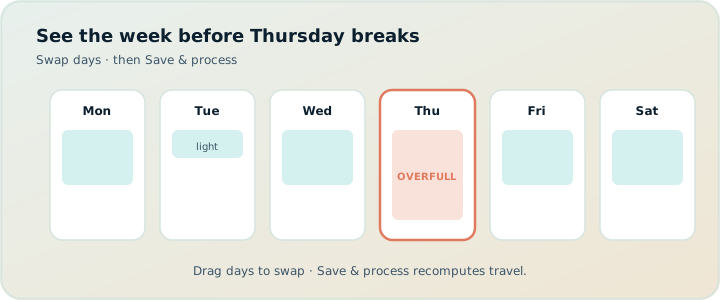
Bird’s-eye vs day: two zoom levels, two jobs
Day Planner is a microscope. You care about duration edits, chained arrivals, transit vs walk on a single hop, pace warnings, hours conflicts, and AI auto-plan with revert. That’s where a day becomes believable.
Month View is a wide lens. You care about load distribution, geographic themes per day, weather-driven swaps, and whether the wishlist is actually landing on the calendar or rotting in Unassigned. That’s where a trip becomes believable.
Using only Day Planner is how people overfit Thursday. Using only a vague calendar screenshot is how people underfit everything. TripPapa keeps both zooms on the same data: the same stops, the same wishlist, the same trip dates.
| Day Planner | Month View | |
|---|---|---|
| Primary question | Does Thursday work minute-to-minute? | Is the week / month balanced? |
| Typical moves | Reorder stops, edit duration, change leg mode | Move stops across days, swap days, assign unassigned |
| Travel | Inspect and refresh legs in detail | Save & process recomputes after structural edits |
| AI auto-plan | Draft assignments with revert | Review distribution after a draft lands |
| Failure if used alone | Perfect days that don’t fit the trip | Balanced-looking days with stale legs |
Zoom out to place the furniture. Zoom in to measure the doorways. Doing only one is how itineraries look finished and feel broken.
What you can do in Month View
- See the trip as a calendar grid with Day N labels across your date range
- Drag unassigned wishlist items onto days
- Reorder within a day or move stops between days
- Swap entire days by dragging one day onto another
- Keep changes in a draft until you Discard or Save & process
That draft model matters. Bird’s-eye editing is exploratory: you try “what if museum day and outdoor day traded places?” without immediately poisoning Day Planner’s travel cache. Discard restores the last saved plan. Save & process commits order and recomputes travel segments for every affected day so timings update.
Swap days: the underrated move
Individual stop moves are necessary. Whole-day swaps are how you respond to reality without rebuilding from scratch. Forecast flips. A partner’s energy crashes. A Monday closure forces a museum cluster elsewhere. Dragging Day 2 onto Day 5 is faster — and less error-prone — than manually emptying both days and re-adding twelve stops while your group chat invents a third plan.
Save & process: why the second verb exists
“Save” alone would freeze a new order. “Process” is the admission that order changes travel. After a reshuffle, metro legs between the old neighbors are lies. Save & process commits the draft and recomputes segments (transit/drive/walk/cycle as configured) so Day Planner doesn’t greet you with confident wrong arrivals.
Workflow that works:
- Shape structure in Month View (assign, move, swap).
- Save & process.
- Open the heaviest days in Day Planner.
- Fix durations, modes, and any hours/pace warnings.
- Refresh travel if you micro-reorder further.
- Only then Export or share.
Skip step 2 and you’re decorating a stale graph. Skip steps 3–5 and you’re trusting a balanced-looking calendar that still walks kids across town twice.
When to use Month View vs Day Planner
Reach for Month View when:
- You’re starting from a fat wishlist and empty days
- One day is obviously overloaded and another is empty
- Weather or closures suggest swapping themes (outdoor ↔ indoor)
- You’re mid-trip and need to rebalance remaining days without nitpicking every leg yet
- You want to see Unassigned pile up — the silent shame metric of unfinished research
Reach for Day Planner when:
- A single day has timed entries, hard opens, or tight connections
- You need to change walk → transit on one hop
- Pace or hours warnings need a real response (cut a stop, shorten a stay)
- You’re reviewing an AI auto-plan day-by-day before you keep it
- You’re preparing the PDF and need arrivals that survive contact with a clock
Rule of thumb: Month View for allocation, Day Planner for feasibility. Allocation without feasibility is a pretty calendar. Feasibility without allocation is three perfect days and a wasted week.
Worked example: ten days Tokyo + Kyoto
Forty wishlist items because Search + Add is fun and blogs are infinite. In Day Planner you lovingly build Day 1 into a masterpiece: morning shrine, museum, neighborhood walk, evening crossing. It fits — barely — with transit legs and a mild pace warning you ignore. You repeat for Day 2 and Day 3. By Day 4 you’re exhausted just looking at the plan.
Month View shows the truth in one glance: the first half is dense clusters; the second half still has Unassigned temples and an empty recovery day you promised yourself. You drag two heavy stops off Day 1 onto Day 6, swap Day 3 with Day 8 because of a forecasted rain window for museums, and assign three Unassigned food-market stops into lighter afternoons. Save & process. Then you open Day 1 in Day Planner and watch the travel chain become human again. Map day mode kills a leftover star. PDF and view-only share go out only after that spot-check.
Same wishlist. Same trip. Different zoom. The bird’s-eye didn’t replace the microscope — it stopped you from polishing the wrong day. Party costs still matter: a theme-park-heavy day may need calendar spacing even if the pin count looks “light” — see party-aware pricing.
How Month View fights tab chaos
The old way: a Google Sheet with date columns, a Maps list, a Notion board, and a chat thread titled “FINAL itinerary (v7).” Moving a museum from Tuesday to Friday means editing the sheet, re-checking Maps, and hoping someone updates the Notion status. Nobody recomputes travel. Everybody argues from a different screenshot.
Month View keeps allocation inside the same system as Research and Day Planner. Drag is the edit. Save & process is the recompute. Share is view-only so co-travellers see the new balance without forking a parallel “v8.” Export Print/Save PDF captures the structure for offline family members. Compared with map-first live collab (Wanderlog: collaborative editing generally on free; Pro $39.99/year for offline, Pro AI place suggestions, route optimization — verify): they win simultaneous editors; you win draft → process → day feasibility. Compared with booking organizers (TripIt Pro often $49/year — verify): they win after booking; Month View wins before the sidewalk week exists.
Draft discipline: explore without wrecking trust
Because Month View edits can be wide, draft discipline is part of the feature. Explore aggressively. If the swap feels wrong, Discard. If it feels right, Save & process and verify two heavy days under the microscope. That rhythm prevents both cowardice (“never reshape the week”) and recklessness (“reshape and assume legs are fine”). Pair with Cloud Save when losing the draft would hurt.
How-to: a 15-minute balance pass
- Open Month View after you have at least a partial wishlist.
- Count stops per day with your eyes — don’t need a spreadsheet.
- Pull from overloaded days into empty or light days.
- Assign obvious Unassigned items that have a natural geographic day.
- Swap days for weather, closures, or energy — not for perfectionism.
- Save & process.
- Spot-check the two densest days in Day Planner (modes, warnings, refresh).
- Map day mode on those two days to kill star routes.
- Share or export only after the spot-check.
Common mistakes
- Never Save & process. Balanced calendar, rotten legs.
- Swapping booked timed entries blindly. Swap flexible tissue; protect anchors.
- Using Month View as the only editor. You still need Day Planner for minutes.
- Leaving Unassigned guilt forever. Assign, cut, or appendix — don’t pretend.
- Exporting before the spot-check. PDF freezes a draft you haven’t verified.
- Treating AI auto-plan as final balance. Review distribution here; Revert if needed.
When you do not need Month View
- A one- or two-day trip with three stops total — Day Planner alone is fine.
- You’re only organizing confirmations, not designing sightseeing days.
- You refuse to recompute travel after structural edits — then a calendar grid will only create false confidence.
FAQ
Is Month View a separate trip?
No. Same stops, same wishlist, same dates — different zoom.
What does Save & process do?
Commits the draft day structure and recomputes travel segments for Day Planner.
Can I discard a bad reshuffle?
Yes — Discard restores the last saved plan before you process.
Should I auto-plan first or Month View first?
Either. Auto-plan drafts; Month View reviews distribution; Day Planner proves feasibility. Revert exists for bad drafts.
Do short trips still benefit?
Yes — long weekends still overload day one. Bird’s-eye helps even when the “month” is four days.
Will co-travellers see Month View on a share?
View-only shares include Month View browse — without edit controls. See share links.
How do hours/pace warnings fit?
They’re day-local in Day Planner. Month View redistributes pressure; then you re-check warnings after Save & process.
Does this replace a spreadsheet calendar?
For trip allocation tied to travel recompute, yes. Keep Sheets for packing lists and money pools if you want.
Deeper how-to: themes, weather, and paid-day spacing
Month View works best when each day has a theme you can say in five words: “west temples,” “museum rain day,” “neighborhood wander,” “theme park,” “recovery.” Themes make swaps obvious. When the forecast flips, you are not inventing a new philosophy — you are trading outdoor theme for indoor theme with one drag. After the swap, Save & process, then open both affected days in Day Planner. Themes without recompute are calendar cosplay.
Paid-day spacing is the family version of balance. A single theme-park pin can outweigh four free viewpoints in energy and party cost. After you Save & process, scan the calendar for back-to-back paid heavies. Pull a recovery or free-outdoor day between them even if the pin counts look “even.” Party-aware Pricing in Research tells you which days are financially heavy; Month View tells you whether those heavies are stacked. Use both. See party-aware pricing and pace warnings.
Unassigned is not shame — it is inventory. Keep a deliberate spare pool for rain and energy crashes, then let Export’s appendix show those spares to the group. The failure mode is pretending Unassigned does not exist while still promising “we’ll fit it in.” Either assign, cut, or appendix. Month View makes the pile visible so you can choose.
Mid-trip rebalance is where Month View earns its keep. You are tired, the chat is loud, and Day Planner perfectionism will burn the evening. Open the calendar, move two stops, swap one day if weather demands it, Save & process, spot-check tomorrow only. Push an updated view-only share via Cloud Save so co-travellers are not stuck on yesterday’s draft. Print a fresh PDF only if offline relatives need the new morning.
AI auto-plan interaction: Apply a draft, then immediately open Month View before you fall in love with any single day. Distribution errors are cheaper to fix at bird’s-eye than after you polish six microscopic timelines. If the draft is geographically drunk, Revert, then assign manually with themes. If the draft is merely uneven, reshape here and verify legs after process.
Short-trip note: a four-day weekend still benefits. Day 1 overload is the most common pattern. Seeing four cells side by side is faster than scrolling Day Planner and hoping your memory of Tuesday is accurate. Bird’s-eye is not only for three-week odysseys.
Worked micro-example: Prague long weekend reshuffle
Four days in Prague. Wishlist: Castle, Charles Bridge loop, a major museum, river option, Petřín, and a food market. Day Planner Day 1 became a jewel — Castle plus bridge plus market — with a mild pace warning you ignored. Day 2 stacked the museum and Petřín because both “sounded cultural.” Month View shows Day 1 and Day 2 heavy, Day 4 empty, Unassigned still holding the river option.
You drag the market to Day 4 afternoon, swap Day 2 with Day 3 because Monday closure risk on the museum, and assign the river option to a light late day. Save & process. Day Planner on the new Day 1 shows travel that no longer assumes the market is next door to the Castle. Map day mode confirms the Castle–bridge cluster. You export only after that spot-check. The bird’s-eye edit took eight minutes; polishing the wrong Day 1 had already taken an hour.
That is the Month View job in miniature: catch load lies early, swap for constraints, process travel, verify under the microscope, then hand off. Without Save & process, the calendar would have looked balanced while Day Planner still believed in yesterday’s neighbors. Without Day Planner afterward, the calendar would have looked balanced while a star route survived. Both zooms, same data.
If AI auto-plan had produced the original overloaded front half, you would open Month View before polishing, reshape, and only then decide whether Revert is cleaner. Distribution first; jewelry second. That ordering alone prevents most “perfect Thursday, dead trip” failures.
The point
Day Planner makes a day true. Month View makes a trip true. Drag, swap, draft, Save & process — then verify travel where it matters. That’s how you stop worshipping Thursday and start shipping a week you can actually walk.
Open the calendar, move one overloaded stop, process, and feel the plan exhale. Launch TripPapa and give your itinerary the bird’s-eye it has been pretending to have in a spreadsheet.
Related reading and next steps
If this article matched the pain you actually have, keep going with the adjacent guides rather than bouncing between unrelated listicles. For the full product loop — Trips, Research, Day Planner, Month View, Map, Export, and share — read how TripPapa works. For competitive framing without forced winners, use the 2026 planner roundup, TripPapa vs Wanderlog, and TripPapa vs TripIt. For the movement and handoff details that usually decide whether a plan survives Thursday, see travel times between stops, opening hours and pace warnings, Month View, view-only share, and printable PDF itineraries.
When you are ready to test the claim instead of reading about it, create one real trip with your real party, add five places, schedule a single day with travel legs, glance at Map day mode, then Print/Save PDF or create a view-only share link. That one loop teaches more than another hour of feature comparison. TripPapa Pass framing is USD $35 for 6 months when you want a planning window; local-first planning still lets you start without turning sign-in into a gate. Keep TripIt or Google Travel for bookings if you need them. Keep Wanderlog if your friends need live map editing. Hire TripPapa when the job is research into feasible days with party-aware estimates, transit/drive/walk/cycle legs, Month View balance, and a handoff artifact someone can actually follow.
Serious planning is not about collecting more apps. It is about giving each job a clear owner and refusing to pretend a booking dashboard, a chat scroll, or a pin board alone is a finished itinerary. Use this article as the decision filter for that job — then go build one honest day.